Wednesday, June 16, 2010

Post Exploitation Pivoting with the Windows 7 Vault

I have been poking around with the updated version of Credential Manager in Windows 7 which has been commonly referred to as "Stored User Names and Passwords" in previous version of Windows. Much like its predecessors, the current version of Credential Manager still uses Data Protection API (DPAPI), but Windows 7 now stores saved credentials within the Windows Vault. Such credentials can include; user names and passwords used to log on to network shares, websites that use Windows Integrated Authentication, Terminal Services, and many third party applications such as Google Talk .


Credential Manager and DPAPI has been under scrutiny in the past. Cain & Able has had a decoder for some time. More recently, researchers from Standford University presented at Black Hat DC 2010 about their DPAPI research.

While breaking the crypto associated with this feature might be useful (i.e. if credentials are re-used elsewhere), it is not always necessary. The purpose of the Credential Manager is to pass saved credentials to resources commonly accessed by the user. Once you have gained access to a host as the unprivileged user  (take you pick of code execution bugs, Adobe pdf's seem to be popular these days), then you can certainly leverage this feature to pivot to resources referenced within the Windows Vault. Keeping a low forensics profile would be preferred, so I attempted to find existing command line tools that were already available on the host. After poking at Windows 7 for a while, I found an undocumented utility called vaultcmd.exe in the System32 folder that appeared useful. The following is the output of the supported switches for vaultcmd;


The /list switch allows us to view all Windows Vaults available on the host for the current authenticated user.


It appears in this example, the two default Vaults are the only ones that exist on this host. Also note that since the user is already authenticated, the vaults are in an unlocked state. Running the /listproperties switch against each vault lists some more details, including the number of credentials saved in each location.


Finally, the /listcreds switch gives us our newly found targets.


It appears, our unprivileged user has stored domain administrator credentials for two domain controllers. While this is certainly more secure than running as domain administrator locally, DPAPI adds no added security in this scenario since local access to this host has been gained. Now that we have completed our reconnaissance, we can pivot and access the servers by simply using the installed tools at our disposal. In the following example, I use psexec and the SET command to verify I have domain administrator access to DC-01 without having to specify a user name and password.


I was also able to access the the domain controller's Admin shares via the NET USE command using stored credentials within the Windows Vault.
net use P: \\dc-01\C$
In addition, since the Windows Server Administrator tools were also already installed on the host, I also verified that the Windows Vault was passing these credentials to Active Directory Users and Computers and the Remote Desktops Client.

I attempted to change some of the default settings for the vault using the /setproperties switch. For Example; it appears that vaultcmd has the ability to set a password on a vault;
vaultcmd  /setproperties:"Windows Vault" /set:AddProtection /value:Password
vaultcmd  /setproperties:"Windows Vault" /set:DefaultProtection /value:Password
But any attempt I made was met with the error; "The request is not supported.". So I would be interested to see if anyone can find additional documentation on this utility or the Windows Vault. I have not been successful in finding anything to date.

Some have suggested that any password management tool that hooks into the browser or operating system is more of a risk than a stand alone application that requires additional authentication mechanisms. While I generally agree with this, the emerging capabilities of attack and forensic tools that acquire volatile memory from a host (and consequently decrypted credentials), only require a bit more patience. Of course such tools, must be loaded on the compromised host increasing the forensic footprint the intruder leaves behind.

Happy Hunting!

Monday, June 7, 2010

Forensics Analysis: Windows Shadow Copies

Microsoft Windows Vista and 7 includes the Volume Shadow Copy Service (VSS) which are leveraged by System Restore and Windows Backup features of the Operating System. By default, this service is turned on and the amount of backups stored depends on the disk size and settings. There is a potential wealth of forensic evidence available within Shadow Copies and even though I am not the first to write about leveraging Shadow Copies for forensic purposes, I thought it was worth writing a quick post here.

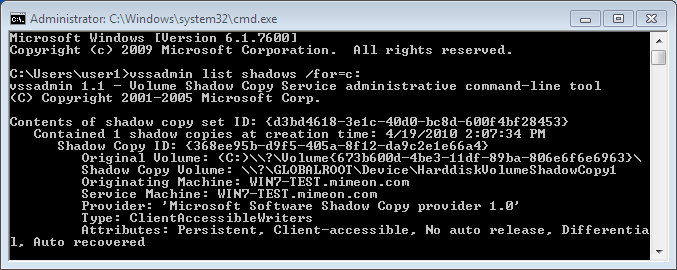
Vssadmin is a command line tool that can be used to display current VSS backups. To do so, use the syntax;
vssadmin list shadows /for=c: (where c: is the volume your working with). 
Here is an example of the output;


Make sure to note the Shadow Copy Volume you want to analyze and use it with Mklink to create a symbolic link to the backup. For example;
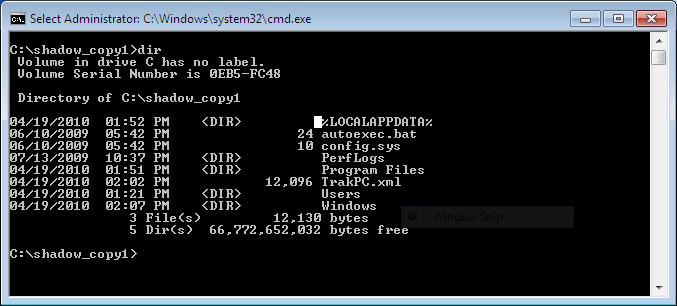
mklink /d C:\shadow_copy1 \\?\GLOBALROOT\Device\HarddiskVolumeShadowCopy1\ (note: the trailing back slash as it is needed). 
 Once created you can browse the symbolic link as you would any folder and restore files of interest by copying them out.


Happy Hunting.

References:
MSDN Blog: A Simple Way to Access Shadow Copies in Vista

Updated June 10, 2011

I came across a great post from @4n6woman on using Log Parser to parse mounted VSC's and preserve the MD5 HAshes and Metadata for easy querying. Thought I would share.

Thursday, June 3, 2010

PaulDotCom EP200: The Hackers for Charity Podcast-a-Thon

Tomorrow I will be trekking south the hang with the PaulDotCom crew for the 8 hour recording of Episode 200. They will be streaming live and it looks like they are pulling out all the stops for this episode. There will be interviews, tech segments, and appearances from HD Moore, Johnny Long, Lenny Zeltzer, Ron Gula, Jack Daniel, and a couple of surprise guests.

The show is dedicated to raising awareness and money for Johnny Long's Hackers for Charity. If you are not familiar with the work Johnny is doing with HFC, take a look! Donations can be made via the donate button on the PaulDotCom website or via the HFC Get Involved Page. So help out with a donation and listen live tomorrow!

Monday, May 24, 2010

The Security Bloggers Network

Rich Mogull of Securosis recently published a blog post entitled Is Twitter Making Us Dumb? Bloggers, Please Come Back. Rich summarizes his experience starting a blog and shares his perspective on the diminishing amount of blogging. Alan Shimel who runs the Security Blogger Network quickly followed up with his own post.

I too have noticed that my RSS reader is not nearly as full as it once was. Many of the resources I have today in my RSS Reader came from the Security Bloggers Network after stumbling upon it several years ago. The blogs I was introduced to through the SBN opened up a new world for me. I was introduced to thoughts and opinions from every corner of the security community. Many of which I had never considered.


When I started my own blog about a year ago, it never occurred to me to even join. In retrospect, it may have been lack of confidence, as I was not sure what I was going to write about. I just knew that there were some thoughts I needed to rant about and blogging seemed like a logical medium. But I quickly found blogging to be an rewarding experience and I am currently backlogged with so many ideas for posts, I have enough material for the remainder of the year.

So I am proud to announce, I am a new member of the Security Bloggers Network. If you have a blog, I recommend you consider joining. If you do not have a blog I ask you to consider starting one, as it can be a rewarding experience to both the author and the reader, alike.

Monday, May 3, 2010

Why Hackers make the Best IT Support Professionals

This is a thought that I have had brewing for some time and I will attempt to not rant too much.  Throughout my IT career, I have been watching many IT Support professionals immediately go for a quick fix to technology issues. This is not to say a quick fix isn’t always warranted. The constant barrage of support issues, end users broad siding you as you attempt to grab lunch, and evolving technology is indeed a challenge. I feel your pain. I've been there, I've done that, and I still do it on a daily basis. The beating support people take can cause even the most saintly to lose his/her patience.

However, I feel the trend of the quick fix, seems to be worsening. In InfoSec, the quick fix is often used in conjunction with FUD (fear, uncertainly, and doubt) to sell those magical products with blinking lights that are going to make the latest attack vectors just magically disappear. The problem with this concept is the same in all subsets of Information Technology, however. How many of us have told colleagues, friends, and family to reboot as a solution to an issue? How many of us have told them to do so more than once for the same issue? See the quick fix is not really a fix at all, it is procrastination.

I like to think that we as IT Professionals, whether desktop support, enterprise architects, coders, or InfoSec pursued our career because we all had the common love of technology. Many of us have the inquisitive nature that would rival any scientist. This makes us all brothers and sisters alike. The inquisitive nature that I felt when powering on my TI99-4A in 1981 is still with me today. This is why I chose this career.

Some of the most inquisitive people I have met while working in IT have been those who have self dubbed themselves "hackers". These are not the "hackers" the media would have you believe are hijacking your wireless and stealing your digital valuables. These are self proclaimed geeks who love computers. They are not always InfoSec professionals. They may work on a helpdesk, as a systems administrator, or at the local Radio Shack. They enjoy taking things apart and putting them back together in ways that improve the technology. See hackers understand the concepts of efficiency and availability.  These concepts are the foundation of supporting any business. It is what our employee’s pay us our salaries for, regardless of the subset of IT we may fall under.

Efficiency and availability is not about reboots and resets. It is about getting to the root of an issue, learning from it, and improving the system(s) from what you have learned. So take the time to understand the technology issues you come across. It can be fun and productive. If you are not feeling the love for your technology career of choice, then ask the hacker working at the local Radio Shack if he or she is willing to trade careers with you. I suspect they would jump at the chance.

More Experiments with Master File Table Timestamps

I had an anonymous comment on my Tampering with Master File Table Records post referencing the Timestomp utility available in Metasploit. Timestomp is an anti-forensics utility used to change the date/time metadata stored in the $Standard_Information Attribute of the Master File Table. I experimented with the utility prior to the previous post but had some issues getting it to run properly on Windows 7. Moreover, Timestomp does not edit the $File_Name Attribute (MACE) values. The commenter does point out and interesting workaround noted on the Timestomp wiki however.

Moving a file post manipulation with Timestomp copies all four of the $Standard_Information Attribute time values to the $File_Name Attribute Attribute values. Once moved, you must change the SI attribute values again. Staying with using the existing tools available on Windows 7, I tested using the Move-Item Cmdlet.
CD C:\Windows\System32
New-Item malicious.dll -type file
(get-item malicious.dll).creationtime=$(Get-Date "02/11/10 07:30")
(get-item malicious.dll).lastwritetime=$(Get-Date "02/11/10 07:30")
(get-item malicious.dll).lastaccesstime=$(Get-Date "02/11/10 07:30")
set-date -date 02/11/10
set-date -date 07:30:00
rename-item malicious.dll notmalicious.txt
Move-Item notmalicious.txt C:\Users\Public\
CD C:\Users\Public\
(get-item notmalicious.txt).creationtime=$(Get-Date "02/11/10 07:30")
(get-item notmalicious.txt).lastwritetime=$(Get-Date "02/11/10 07:30")
(get-item notmalicious.txt).lastaccesstime=$(Get-Date "02/11/10 07:30")
I verified again by carving the $MFT out and using analyzeMFT to parse the contents. The following is the output of the $MFT record for our malicious file verifying that all eight date values have been edited;


Rob T. Lee also recently posted some research he has been doing on Windows 7 $MFT timestamp entries. His findings to date seem to support the aforementioned behavior. It will be interesting to see what additional behavior he finds. Keep the comments coming!

Thursday, April 15, 2010

An Aside Note on Last Access Time Values

Dave Hull had brought to my attention that Windows Vista and Windows 7 has the Last Access Time attribute disabled by default. I verified that Windows Server 2008 also has this feature disabled. To enable via the registry (note a restart is necessary):
[HKEY_LOCAL_MACHINE\SYSTEM\CurrentControlSet\Control\FileSystem]
"NtfsDisableLastAccessUpdate"=dword:00000001
This did not prevent me from manipulating the $MFT attributes with PowerShell, but I did notice some strangeness when accessing files via explorer.exe. Specifically, the Last Access time does not always get updated even with this setting enabled. After some searching around I found this article on Microsoft TechNet. To quote the relevant sections;
The Last Access Time on disk is not always current because NTFS looks for a one-hour interval before forcing the Last Access Time updates to disk. NTFS also delays writing the Last Access Time to disk when users or programs perform read-only operations on a file or folder, such as listing the folder’s contents or reading (but not changing) a file in the folder. If the Last Access Time is kept current on disk for read operations, all read operations become write operations, which impacts NTFS performance.
NTFS typically updates a file’s attribute on disk if the current Last Access Time in memory differs by more than an hour from the Last Access Time stored on disk, or when all in-memory references to that file are gone, whichever is more recent. For example, if a file’s current Last Access Time is 1:00 P.M., and you read the file at 1:30 P.M., NTFS does not update the Last Access Time. If you read the file again at 2:00 P.M., NTFS updates the Last Access Time in the file’s attribute to reflect 2:00 P.M. because the file’s attribute shows 1:00 P.M. and the in-memory Last Access Time shows 2:00 P.M.
I was able to confirm this behavior by altering the system time prior to accessing a file. I thought it was noteworthy since the Last Access Time may not be completely accurate. While the forensic impact of this could be debated, it should at least be considered during an investigation.

Wednesday, April 7, 2010

Tampering with Master File Table Records

I have been spending some time reading File System Forensic Analysis by Brian Carrier which is considered by many to be the primary resource on the subject of file system forensics. Consequently, I began thinking of ways to tamper with the metadata stored within the Master File Table (MFT) of NTFS formatted drives. In NTFS everything is a file and the MFT stores information on these files. Analyzing the MFT is one way of establishing a forensic timeline of all file and folder changes on the system being investigated.

The MFT file contains a unique record for each file or folder which includes several attributes such as the $Standard_Information Attribute and $File_Name Attribute. Each attribute contains metadata on every file and folder ever created, modified, accessed, or removed within NTFS.

The $Standard_Information Attribute contains metadata which includes the Date/Time values that are commonly referenced by the operating system. These are the values one would see when viewing the properties of a file within explorer.exe on a Windows system. The values are sometimes referred to as M.A.C.E. and include;
Modified Time: Time the folder or file was last modified
Accessed Time: Time the folder or file was last accessed
Creation Time: Time the folder or file was created
Entry Modified Time: Time the MFT entry of a folder or file was last modified (note: cannot be viewed from Windows explorer)

The $File_Name Attribute contains the name of the file. In Windows there will usually be entries in both the 8.3 DOS and Win32 naming format. The $File_Name Attribute also contains similar date/time (MACE) values as those found in the Standard Information Attribute. These values often reflect the creation time of the file or folder and do not change frequently. There are exceptions to this which I discuss later in this post.

Since the attribute values stored within the MFT are commonly used for generating a timeline during the analysis of Windows NTFS file systems, I started playing around with manipulating the metadata within it. If one wanted to cover one's tracks by doing so, it would be useful to use tools already available on the operating system. Such tools would ideally not track or log the commands run on the system. Irony is, the Windows PowerShell fits this description and has these capabilities. Dave Hull has noted this on his blog here.

By leveraging the Get-Item cmdlet in PowerShell, one can change some of the metadata within the $Standard_Information attribute and consequently the values shown in the properties of the file. For example;
(get-item malicious.dll).creationtime=$(Get-Date "02/11/10 07:30")
(get-item malicious.dll).lastwritetime=$(Get-Date "02/11/10 07:30")
(get-item malicious.dll).lastaccesstime=$(Get-Date "02/11/10 07:30")
 

To verify this change within the MFT, I used FTK Imager Lite to export the $MFT and AnalyzeMFT to parse and export the contents into CSV format. AnalyzeMFT is a free tool based on a commercial tool called MFT Ripper by Mark Menz. Once exported, the CSV file can be opened in your favorite spreadsheet program for easy filtering. The following screen shot shows the MFT record for the malicious.dll after I using the Get-Item cmdlet to change the dates (note the dates are stored in UTC format).


As you can see from the export, the problem with this tactic is the Std Info Entry Date (MFT Entry Modified Time) remains unchanged. Moreover, the FN Info ($File_Name Attribute) Dates also remain unchanged. Interesting enough, renaming the file will change both these values but doing so will change them to the current system time. The only real option I have been able to find is to change the system time prior to renaming. This can be accomplished by using the set-date cmdlet in Power Shell.
set-date -date 02/11/10
set-date -date 07:30:00
rename-item malicious.dll notmalicious.dll
Now we have the following export from the MFT.


Unfortunately, this approach is far from perfect. The MFT Entry Modified Date within the $File_Name Attribute remains unscathed (I have not been able to figure out how to change this). Moreover, by default, a System Informational Event is logged within the Windows Event log of a change to the system time. Note the the date of the event however. There is a similar event logged for the time change.
Log Name:      System
Source:        Microsoft-Windows-Kernel-General
Date:          2/10/2010 12:00:00 AM
Event ID:      1
Task Category: None
Level:         Information
Keywords:      Time
User:          User
Computer:      CompromisedHost
Description:
The system time has changed to ?2010?-?02?-?11T04:00:00.000000000Z from ?2010?-?04?-?07T18:49:38.251360400Z.
Other considerations, include .lnk files being stored within the MFT due to the "Recent Document History" feature being turned on by default within Windows. This feature would create a malicious.dll.lnk file in the C:\Users\Username\AppData\Roaming\Microsoft\Windows\Recent folder on Windows Vista and 7 and consequently create an MFT entry for this file with metadata. This certainly would also be a red flag for the forensic investigator. Thus an attacker may want to turn this feature off prior to performing any tasks on the host. With PowerShell this can be accomplished by using the New-ItemProperty cmdlet to create the appropriate registry values and then by using Stop-Process cmdlet to force the reload of the explorer.exe shell for the current user.
mkdir HKCU:\software\microsoft\windows\currentversion\policies\explorer
New-ItemProperty HKCU:\software\microsoft\windows\currentversion\policies\explorer -name norecentdocshistory -propertytype DWord -value 1
Stop-Process -name explorer -force
The explorer process reloading will also generate an information event log.
Log Name:      Application
Source:        Microsoft-Windows-Winlogon
Date:          2/11/2010 7:34:12 AM
Event ID:      1002
Task Category: None
Level:         Information
Keywords:      Classic
User:          N/A
Computer:      CompromisedHost
Description:
The shell stopped unexpectedly and explorer.exe was restarted.
Stopping the eventlog service prior to actions being taken on the compromised host may be prudent, but I will save the manipulation of other forensic timeline sources for a later post.

Updated May 3, 2010:

Published a follow-up post on successfully changing the Entry Modified Date within the $File_Name Attribute thanks to an anonymous tip. The followup can be found here.

Wednesday, March 31, 2010

Socs vs Greasers: The Pentesting Debate

During the Podcasters Meetup at Shmoocon 2010 a conversation began about the worth of penetration testing in the corporate environment. On one side of the tracks, business folks questioning why it was necessary to active exploit business systems while penetration testers argued for such. The conversation and debate has continued on many mediums since Shmoocon and many involved have made some valid points. I have not heard much from anyone who is in the trenches of security operations, however. Since this is my primary role for the small enterprise I support, I thought I could add some of my own perspective to the discussion.

I am the typical one man security show that is not uncommon within business the size of my employer. I deal with all aspects of security for the organization including vulnerability scanning and penetration testing. Other responsibilities include regulatory compliance, incident response, patch/vulnerability management, and security architecture. So my view on penetration testers and the services they have to offer is the same as any other consultant or contractor that walks through my door. I welcome the second set of eyes and assistance.

The reality is with all aspects of my daily responsibilities, I am going to miss things, make configurations errors, and downright fuck up from time to time. The fact the matter is I get tired, have a family, and often don't know my systems as well as I may think I do. I am a juggling clown balancing on a unicycle with a warped rim riding right down the middle of the train tracks separating these two groups.

This debate is not new and many others have already touched upon some of the pros of penetration testing. Defense in depth by way of post exploitation testing is one such argument that is completely valid. There are a few additional arguments I would like to make in regards to the usefulness of penetration testing, however.
  1. Your penetration tester should not be testing things that you know are broken. This wastes the consultant's time, your money, and does no one any good. If you know it is broken, evaluate the risk then fix it or put the appropriate mitigation in place so that it can be tested during the next engagement.
  2. Sometimes exploitation is the only way to verify something is broken. The Symantec exploit I blogged about last October is a great example of the risk assessment and patch management process failing within an organization. This was a situation where the only way to verify that a system was vulnerable even though it was patched was to run the POC on it. Such situations, while not the norm, are also not unusual. If you are trusting your Vendors to secure your environment, you are doing it wrong. It should be noted that the vulnerability was weaponized several months later as reported by dshield.org here.
  3. Incident Response! You do have an Incident Response plan right? Thought so! Do you review and practice it? What better time to see how well your IR plan works than when you're actively being attacked. A Penetration Test is a great time for the entire team to have a "fire drill" of sorts. I recently had the opportunity to listen to Andy Ellis speak about incident response. Andy serves as Akamai's Senior Director of Information Security and Chief Security Architect. His statements about availability made an impression on me. If your management is really serious about maximizing up time, then you better have a lean, mean Incident Response team. It is not a matter of; if you have a compromise, it is a matter of when, and how well you respond to it.
What about APT do you ask? I will leave you with a recent description of APT from Matt Olney of the VRT Sourcefire team;
APT: There are people smarter than you, they have more resources than you, and they are coming for you. Good luck with that.
Matt's advice includes building a security team with "... at least one very bad person" on it. For the small business security professional, that person is often the penetration tester. Besides they are usually much more fun to have a beer with than senior management.

Monday, March 1, 2010

Guest Post on the SMB Minute

Today The SMB Minute has blogged a post written by myself entitled; Those Who Cannot Remember the Past are Condemned to Repeat it. The SMB Minute is a podcast/blog focused on small and medium businesses. Aaron and Tim's goal is to talk tech for the business community by putting things into terms easy for the non-technical to understand. Thank You to both for entertaining my thoughts and ideas.