Showing posts with label forensics. Show all posts

Tuesday, November 26, 2013

Finding Cryptolocker Encrypted Files using the NTFS Master File Table

For the most part, everyone seems to be familiar with the new variants of Cyptolocker making the rounds these days. To quickly summarize, this form of ransomware that encrypts documents and pictures found on local and mapped network drives in an attempt to obtain payment for the decryption keys. The attackers are using decent encryption and the malware is very efficient. A good write up can be found here.


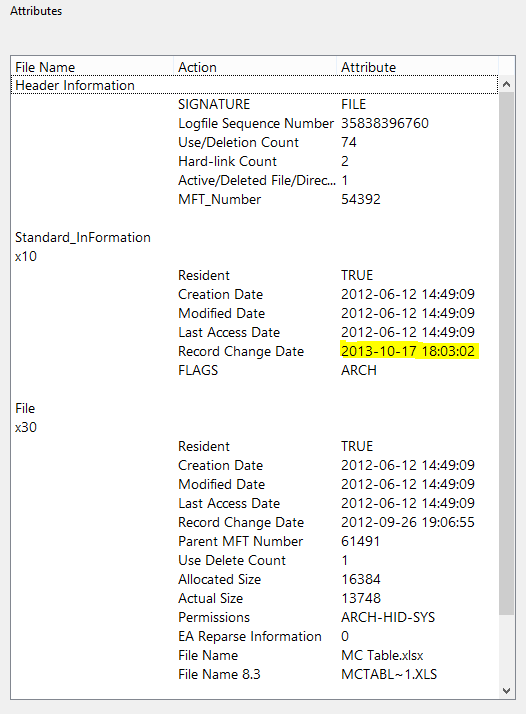
Recently, I dealt with an infection and during forensic analysis noted that the NTFS Master File Table $SI Creation and Modified dates remained unchanged on files encrypted. I made a note of this for later and circled back around during post analysis.


Since the infection not only encrypted all the documents on the user's local drive but also files located on mapped file shares too, I decided to grab the MFT from the Windows file server. Using analyzeMFT and MFTParser, I was able to parse the 9 GB $MFT in a reasonable time frame. Identifying some known encrypted files by the $FN file name, I noted the only date in the MFT record that coincided with the infection was the MFT Entry Date or date the MFT record itself was modified. Using this, I filtered out all records that had $SI or $FN time stamps that preceded this.


The result was I was able to identify over 4400 files encrypted on the file share. Not bad for an infection that only lasted a few hours before being caught by the most recent Antivirus signature. Load up the backup tapes boys!

Happy Hunting!

Updated November 27, 2013 2:15 PM

After exchanging a few emails with some people in the industry, I think what we are seeing here is an example of File System Tunneling. To be specific, if a file is removed and replaced with the same file name (in the same folder) of a NTFS drive within fifteen seconds (default with NTFS) it will retain the original NTFS attributes. I have seen this before with other Trojans as a way to avoid detection. Just an educated hunch. More info on File System Tunneling can be found here. Thanks to all who responded to me.

Updated November 27, 2013 3:00 PM

Just a quick update of some of the IOC's (Indicators of Compromise: MD5, SHA1, Location) for this particular variant;

2a790b8d3da80746dde3f5c740293f3e    7d27c048df06b586f43d6b3ea4a6405b2539bc2c    \\.\PHYSICALDRIVE1\Partition 2 [305043MB]\NONAME [NTFS]\[root]\ProgramData\Symantec\SRTSP\Quarantine\APEA53C866.exe
f1e2de2a9135138ef5b15093612dd813    ea64129f9634ce8a7c3f5e0dd8c2e70af46ae8a5    \\.\PHYSICALDRIVE1\Partition 2 [305043MB]\NONAME [NTFS]\[root]\Users\%userprofile%\AppData\Local\Temp\e483.tmp.exe
714e8f7603e8e395b6699cea3928ac81    36f40d0be83410e911a1f4231eeef4e863551cee    \\.\PHYSICALDRIVE1\Partition 2 [305043MB]\NONAME [NTFS]\[root]\Users\%userprofile%\AppData\Roaming\dhsjabss\dhsjabss
17610024a03e28af43085ef7ad5b65ba    77f9d6e43b8cb1881396a8e1275e75e329ca7037    \\.\PHYSICALDRIVE1\Partition 2 [305043MB]\NONAME [NTFS]\[root]\Users\%userprofile%\AppData\Roaming\dhsjabss\egudsjba.exe
621f35fd095eff9c5dd3e8c7b7514c1e    f03233e323f9a49354f2d6c565b6ec95595cc950    \\.\PHYSICALDRIVE1\Partition 2 [305043MB]\NONAME [NTFS]\[root]\Users\%userprofile%\Desktop\Iqbcxbvszzgdxjvbp.bmp
I wanted to also comment on using software restriction policies in Windows to block executable's from running from locations such as C:\Users\%userprofile%\AppData\Local\Temp. With no local admin rights, users only have the ability to write to three locations on modern versions of Windows (by default). Thee are;

C:\$Recycle.Bin
C:\ProgramData
C:\Users\%Userprofile%

The attackers know this and 99% of infections I see in my environment are using these locations efficiently (including this one).

Unfortunately, a lot of legitimate software also use these locations. So using, suggestions such as Software Restriction Policies, to stop the execution from these locations in a large enterprise environment may or may not be realistic. I suspect adding rules, to check if the executable is legitimately signed, would reduce false positives. I am, however, seeing malicious code signed on occasion. In conclusion, there is no silver bullet here but I personally plan to explore these defenses more and will update what I find as I do.

Lastly, some online posts of this malware has mentioned the use of the HKEY_CURRENT_USER\Software\CryptoLocker location in the Windows registry as a way to determine what files have been encrypted. I just wanted to mention, that I did carve the ntuser.dat file from the compromised system and noted that this location did exist in the registry. It however, did not contain any entries on what files were encrypted.

Updated December 05, 2013 3:00 PM

Since Michael Mimosa over at Threat Post was kind enough to link back to my post, I thought I would return the favor. Forensics Method Quickly Identifies CryptoLocker Encrypted Files

Thursday, May 23, 2013

ZAccess/Sirefef.P Artifacts

I wanted to share a few interesting artifacts from two ZAccess/Sirefef.P compromises I recently had to deal with. In both infections, malicious files were written to hidden sub directories located in the User and System accounts $Recycle.Bin's. Much like other variants of this Trojan, these files were injected into legitimate processes including explorer.exe and services.exe. At first I thought the infection had mucked with the permissions of the hidden sub directories within the Recycle.Bin but then noticed the S-1-5-18 SID, indicating the use of the SYSTEM account.


The first compromise went a step further and overwrote the Wdf01000.sys driver under \SystemRoot\System32\Drivers. I would have missed this if I had not dumped the NTFS Master File Table and used the $SI Entry Date when creating my timeline. By overwriting the existing file, it would appear the other NTFS timestamps were preserved due to File System Tunneling (ref: KB172190 and WIR Blog). A very interesting artifact indeed.


The first variant loaded some typical Fake Antivirus into the C:\ProgramData folder. Nothing new there but with the second variant, I noted the creation of a lot of Internet cache files under \SystemRoot\System32\Config\Systemprofile\AppData in what appeared to be the presence of click fraud.


Overall, a couple of interesting variants that I enjoyed playing with. Here's the hashes for reference.
[root]\$Recycle.Bin\S-1-5-18\$a032773db1be215125d280696ec7b357\n
MD5: 3aaac8a9352dde4e2073a7814514bd9d
SHA1: 321132983c3fc25448e19ae63e65cb127f28c5b7 

[root]\$Recycle.Bin\S-1-5-18\$f58c247e192203c97063e19c12229833\n
MD5: cfaddbb43ba973f8d15d7d2e50c63476
SHA1: 34206a971fe3cbb1acf2ce8bb9f145bfd78e256e 
Happy Hunting!

Wednesday, October 17, 2012

Incident Response in 3.08 MB

I don't normally post anything on specific software products but occasionally I come across a commercial tool that truly excites me. One recent example is a tool called Carbon Black from Kyrus. I had participated in the beta testing of the product last year and I recently decided to revisit the production release.

For years, defensive strategies I helped to implement such least privilege, patch management, user account control, and system hardening has kept the majority of the malicious binaries off the hosts I have supported. Recently, these defenses seem to be working less and less, however. The bad guys are getting better and I suspect this has to do with organizations implementing the aforementioned strategies in a much more efficiently and consistent manner which has forced the attackers to adapt.

Attackers have graduated to using exploits against third party software and browser plugin's such as Java and Flash. They are writing to the Microsoft Windows users profile and HKCU registry keys when local administrator rights are not present. It seems to be working well and organizations I speak with are left relying on lagging AV and IPS signatures for detection and prevention. The issue is compounded for smaller companies, that do no have a full time IR team in place.

The idea behind Carbon Black (CB) is to monitor code execution. A small Windows agent is deployed to each host throughout the enterprise. This agent hashes each process, monitors the sub processes, module loads, registry edits, file writes, and network connections. Digital signatures and the activity of each binary is stored on the CB server.

The interface is well thought and intuitive. You can easily filter and drill down or up the relational data easily and quickly based on any of these aforementioned data points. Once potential indicators have been identified, it is easy to correlate the related activity.

For example, there was a recent string of well done phishing emails that got pass my org's spam filters. Claiming to be from ADP Internet Services, the email contained a malicious link that brought the unsuspected user to a web server that was hosting a JAR file.


The user, realizing the error of her actions, forwarded the email to me. Our corporate AV and IPS never detected the incident. Using CB to filter for unsigned files, I determined that an exe was dropped to temp folder in the Windows user profile.


From there I was able to quickly drill down to the sub process loaded, file writes, and registry edits. Not only did I know exactly what was changed on the system but now I had the MD5's of the indicators.


Using these hashes to filter for processes and sub-processes on all my hosts, I could determine if anyone else clicked the link and was compromised.

CB FTW!

The team at CB have also started to add some plugin's to the toolkit. These include; an autorun's checker, virurtotal submission using the VT API, and csv data exports to list just a few. These have some great potential and I cannot wait to see more developed. Additionally, I would like to see support *nix and OSX. But overall, I think the tool is a fantastic asset and am looking forward to demoing it to the rest of my team.

Happy Hunting!

Thursday, October 6, 2011

You've Got Mail! - The PFF File Format

My recent experimentation and blog post on the analysis of the Microsoft Extensible Storage Engine (ESE) database used by Microsoft  Windows Desktop Search (WDS) prompted me to begin looking at other ways Microsoft utilizes the ESE file format. Microsoft Outlook also utilizes the ESE in the form of the Personal Folder File (PFF) format. This includes the Personal Storage Table (PST) and Outlook Storage Table (OST) files which are commonly known as Outlook Data Files. The former (PST) is used in a non-enterprise setting when configuring outlook with email services such as pop/smtp and the later is created in enterprises with Outlook cached mode is enabled. Other forms of PFF include the Personal Address Book (PAB).

Joachim Metz has also done a fair amount of research on the PFF file structure as part of his libpff project. During the time of his research, the PFF file format was largely unknown. In 2010, however, Microsoft published the open specification on the PFF format and made it available as part of the MSDN Library.

The first four bytes of the file header contains the file signature of "!BDN " (0x2142444e). The 9th and 10th byte contain the content type which is 'SM' for PST (0x534D) and 'SO' (0x534F) for OST.

 
Metz's libpff pffexport utility will parse either file type. Once parsed, pffexport exports the following information on messages;
  • Internet Email Headers
  • Outlook Headers
  • Conversation Index
  • Recipients
  • Message Body 
  • Attachments 
Prior to Outlook 2007 there were three forms of file encryption available for PFF files; none, compressible, and high encryption. Metz documents the following about the two later options;
...actually more of a way to obfuscate the information in the PFF than real means to ensure confidentiality....
Microsoft's Open Specification document on the PST file structure also confirm Metz's findings on PFF encryption prior to Outlook 2007. They now recommended the use of Encrypted File System (EFS) or BitLocker Encryption to secure these files. Consequently, versions of Outlook after 2007 use compressible encryption and high encryption is no longer available.

Additionally, Microsoft Outlook allows users to set a password on their PST files. This password however, is a weak 32-but Cyclic Redundancy Check (CRC32) and consequently, is subject to collisions. This has been know for quite some time and Microsoft has documented this;
The PST Password, which is stored as a property value in the Message store, is a superficial mechanism that requires the client implementation to enforce the stored password. Because the password itself is not used as a key to the encoding and decoding cipher algorithms, it does not provide any security benefit to preventing the PST data to be read by unauthorized parties.
Metz clarifies this a bit more in his research. Applications, such as Microsoft Outlook, are conforming to the password protection but in reality, none of the data is actually protected by the password. Consequently, the libpff pffexport utility can export all items stored in the PFF file without supplying the password.

The libpff utility was able to parse the email headers and content on both the PST and OST files during my testing.


This certainly could be useful to forensics practitioners. The aforementioned, lack of security of these files however got me thinking more about the use of products such as Outlook Anywhere (RPC over HTTP) in the corporate world. Outlook Anywhere allows users to access corporate email on their personal computers using Microsoft Outlook. Consequently, corporate email would be stored in the local PFF file on the user's home system. Unless Whole Disk Encryption or other means were being used to secure the file system, then the potential risk to the intellectual property of corporation could be significant.

Happy Hunting!

Thursday, September 8, 2011

Windows Desktop Search Index

Microsoft Extensible Storage Engine (ESE) database is used by a variety of Microsoft services including Exchange, Windows Mail, Active Directory, and Windows Desktop Search. I recently began wondering what forensic artifacts might be indexed by Windows Desktop Search (WDS) and available to an analyst. By default, user documents and IE internet history are indexed, but Outlook 2007/2010 also integrates with WDS. Consequently, this might be an additional source of email artifacts. While there can be a wealth of information available to a responder in an enterprise that utilizes Microsoft Exchange and any of a variety of email archiving solutions, the WDS ESE database may still be useful in non-enterprise settings.


After some searching, I came across Joachim Metz research on the ESE format and WDS as part of the libesedb project. Metz documents the ESE database structure, data obfuscation, and compression thoroughly. Consequently, I am not going to summarize all of his research but fully recommend you read it if interested.

The libesedb project contains two tools; esedbinfo and esedbexport. Esedbinfo provides detail about the structure of the ESE file and Esedbexport allows you to extract the tables for analysis. The following is an example of running Esedbexport on the WDS database (the default location is C:\ProgramData\Microsoft\Search\Data\Applications\Windows\Windows.edb). It should be noted that the Windows Search (WSearch) service needs to be stopped to access this file on a live system.


The SystemIndex_0A table contains the bulk of useful information. The following is an example of the Outlook Welcome email obtained from the parsed table.


To the best of my knowledge, it is unknown how long indexed data is kept but I was able to obtain previously deleted emails from several days prior without issue. This included the full body of the email (see update below). Again, I am unsure how often a forensicator would need to utilize these artifacts. In addition to the aforementioned resources available in an enterprise, Microsoft Outlook also utilizes the Personal Folder File (PFF) format for Personal Storage Table (PST) and Outlook Storage Table (OST) files. These are both commonly known as Outook Data Files. The former (PST) is used in a non enterprise setting when configuring outlook with email services such as pop/smtp and the later is created in enterprises with Outlook cached mode is enabled.

In addition to the libesedb project, Joachim Metz also runs the libpff project. His research there provides a tremendous amount of insight into the PFF file structure and usefulness.

So what do you say? Is the Microsoft ESE file format a useful artifact for file forensics?

Happy Hunting!

Updated: September 09, 2011

Dave Hull was kind enough to post a comment and share some of his experiences with WDS and deleted files. This consequently got me to revisit my testing with a larger poking stick. After several hours I determined a few things about deleted emails and the affects on the WDS index.

First and foremost, I could not duplicate finding deleted emails in the index. I am unsure if my initial testing was flawed or if there is internal workings unknown to me. I did however note the following behavior when deleting emails.

When an email is sent to the Deleted Items folder in Outlook the "System_IsDeleted" is marked as True and the "System_ItemFolderPathDisplay" value is changed to reflect this new location. This comes as no surprise. This was the case with my initial testing and the example I gave of the Outlook Welcome Email.

Once the email is removed from the Deleted Items folder, the Index Record is removed very quickly. I confirmed this multiple times. This leaves a missing DocID in the table which is eventually re-used for another index record. This is very similar to the behavior of the NTFS Master File Table when a files/folders are deleted.

I re-read Joachim Metz's initial research and he does mention that the WDS index can contain deleted file information and content but was unsure how long this is kept. He also mentions a table called "SystemIndex_DeletedDocIds" which contains the deleted DocId's in Windows Vista and above. Unfortunately, the Esedbexport tool does not seem to extract this table as of yet.

All things considered, a very interesting experiment.

Thursday, August 4, 2011

Carving Symantec VBN Files

Those of you who perform IT support or incident response are most likely intimate with corporate antivirus products. While the usefulness of antivirus can be debated, the purpose of this post is to provide some insight into the file structure of Symantec's quarantine files. It is not uncommon for an IT practitioner or an incident responder to restore and perform further analysis on a malicious file to verify the attackers intent. Someone recently posted to the Windows Forensics email group about having issues restoring quarantined files from Symantec Endpoint Protection (SEP) 11 which prompted me to put together this quick post.

Symantec does provide a utility called QExtract that allows for the extraction of quarantined files. Documentation on the syntax of the command line utility can be found in Symantec's online knowledge base. As an example, the following is the output obtained from using the /DETAILED switch with qextract.exe on a system that the Mebroot rootkit payload was detected on.


QExtract can restore the malicious file by using the session ID, file name, or risk name obtained from this output (see the aforementioned documentation for syntax). The utility works, but is limited. It only runs on Windows. Additionally, you cannot point QExtract to an alternate source location. If SEP is not installed, then the default path to the quarantine files must be manually created. Moreover, when restoring something from a quarantine file, the original path of the file must exist or restoration will fail.

The file structure of the quarantine files in Symantec's AV products has been known for some time, however. Since 2007 there has been an Encase script available that will extract these files. SEP Quarantine files, also known as Virus Bin (VBN) files, are located in the C:\ProgramData\Symantec\Symantec Endpoint Protection\Quarantine folder. For the purpose of this post, I am looking at the detection of the aforementioned Mebroot rootkit. Some details including hashes and statistics from Virus Total are as follows.
Symantec: Trojan.Mebroot
MD5: fd543137a51fc24e07e00f9bc7c3c06e
SHA1: 357ac149ba2c864a5f0fc2276c2fa437b5c5533b
http://www.virustotal.com/file-scan/report.html?id=43cafc4464ac08a6b1be53958be377c70ded28ed6f0602449fbd7872604074fe-1303095131
Looking at a VBN file using X-Ways WinHex Editor we see the file begins with the original location of the detected malware. At offset 0x00000184 (byte 388) SEP stores additional information on detection of the malicious file including the system name, original location/name of file, time of detection, and Symantec unique record ID.


At offset 0x00000E68 (byte 3688) we see something else. It appears that the data has been obfuscated or encrypted. Note the that the value 0x5A is common throughout the file. What are the chances that these are actually spaces (0x20) and the data was XOR'd with the value of 0X5A?


Using Winhex to inverse XOR with the value of 0x5A gives us the malicious file. Note: the file signature of 0x4D5A (MZ) which is for a Windows/DOS executable file.


To carve out the Mebroot payload, simply copy the selected block to a new file and save it.

I would imagine this will work with previous versions of Symantec Corporate Edition but the offsets may be different. If anyone has any experience in that regard let me know.

Happy Hunting!

Friday, July 29, 2011

Dear Diary: AntiMalwareLab.exe File_Created

I have previously posted about the usefulness of parsing the NTFS Master File Table during static malware analysis.  The Master File Table ($MFT) is only one of the twelve metadata files in NTFS file system however. The $Extend object ($MFT Record Entry 11) is used for optional extensions to NTFS. Beginning with Windows 2000, Microsoft added change journaling ($UsnJrnl) to this list of NTFS extensions. $UsnJrnl is turned on by default in Windows Vista and 7, and records all changes that are made to the file system. It should be noted that changes recorded do not include what specific data changed, rather just the type of change and time stamp of when the change occurred.. This can still be useful however when attempting to establish a timeline of malicious changes to a system.

The $UsnJrnl is stored on the root of the volume in the \$Extend\$UsrJrnl file. The file has two $DATA attributes, the $Max attribute which contains general information about the journal and the $J attribute which contains the actual list of changes. Each journal record varies in size and includes an Update Sequence Number (USN). The USN is 64 bit in size and is stored in byte 64-71 of the $STANDARD_INFORMATION ($SI) attribute of the $MFT.  The following output is an example of the $SI XXD of a file named malicious.dll.

Searching a dd (raw) image for a suspected malicious file called malicious.dll with the The Sleuth Kit (TSK) tool “fls” produces the $MFT Record Number of the file.
fls -f ntfs -r /media/Passport/Images/Image001.dd | grep malicious.dll

 ++ r/r 1618-128-1:    malicious.dll
Using this entry number (1618) we can display the $SI attribute (type=16) from the $MFT record  $SI (type=16) with the TSK "icat" tool.
icat -f ntfs /media/Passport/Images/Image001.dd 1618-16 | xxd
The USN, in the above example, represents the byte offset in the $UsnJrnl (remember each record varies in size). It should also be noted that the $Usnjrnl is a sparse file, meaning it has a maximum size but old records are overwritten with zero's and any updates to it will be written to the end of the file and perpetually increase the USN (based on byte offset from the beginning of the file).

Microsoft MSDN has a fair amount of documentation on the structure of the $UsnJrnl $J file and what fields it stores. Additionally, Brian Carrier does a great job of breaking down the data structure and byte offsets in his book File System Forensic Analysis. The following is an example of a $UsnJrnl record structure.

We can obtain the $MFT entry address of the $Usnjrnl $J file by using the TSK "fls" tool (note: the $Extend Object will always be $MFT entry 11).
fls -f ntfs /media/Passport/Images/Image001.dd 11
Once the location of the $J file is obtained, the contents can be displayed by using the TSK "icat" tool as follows. Please note that the -h option skips holes in the sparse file.
icat -h –f ntfs /media/Passport/Images/Image001.dd 41455-128-3 | xxd
A quick search for our "malicious.dll" provides a good example of the structure a $UsnJrnl record.
Byte 40-43 is the USN_CHANGE flag and is well documented on MSDN. For reference purposes the following table summarizes the type of flags and their hexadecimal values recorded in the $UsnJrnl.


There are a few utilities and scripts available to automate the parsing of the records but for the purpose of this post I am using one I recently became aware of through the Windows Forensic Analysis Email list. The Windows Journal Parser (JP) is available for Windows, Linux, and Mac. JP pulls the allocated clusters from the sparse file and parses the records. Information pulled includes Time/Date of change, File/Folder Affected, Type of Change, and by using the verbose option (-v) it will add the $MFT Entry Number and Sequence Number. JP is able to parse a the $UsnJrnl from a live volume, dd image, or carved $J file and export to a variety of formats.

I recently came across a compromised Windows 7 system and had the opportunity to use JP during analysis. The following is the location, hash values, and Virus Total stats of the malicious (unsigned) process that was found on the system.
File name: VD90c_2121.exe
Submission date: 2011-07-21 14:13:39 (UTC)
Result: 14 /43 (32.6%)
MD5   : c8a695e4c411af859fa358eabb4127d1
SHA1  : 78e10150b3fd91b199adf0457a2e3902bc70eaf6
SHA256: 54e80b6d08bedf9210e6a0cead297a36d34f12170568c672e70ff6f750a69a00
After parsing the $UsnJrnl with JP, I searched for the aforementioned malicious process and was quickly able to obtain a timeline of changes made during infection.

Within a few minutes of analyzing the output from the $Usnjrnl I recognized some of the files and locations created as being similar of a malicious program I analyzed previously last November and outlined here. Hence significantly reducing the time necessary to find the origin, payload, and other infection locations on disk.

It should be noted again that $UsnJrnl records are not going to kept indefinitely. Moreover, if a file is deleted, related $MFT entries may be overwritten. More info on carving old $UsnJrnl records from unallocated space and other $UsnJrnl parsing utilities is posted over at the Forensics From the Sausage Factory Blog. I recommend you check it out.

Happy Hunting!

References:

Carrier, Brian (2005). File System Forensic Analysis. Addison Wesley.
.
Microsoft MSDN USN Record Structure.

Friday, May 27, 2011

Virtualizing Raw Disk Images

I have heard a lot of people ask about how to forensically handle raw (dd) disk images of systems that have been encrypted with whole disk encryption. Both PGP and Truecrypt support the use Recovery/Rescue ISO's to decrypt drives without booting the OS (Note: an administrator pass phrase is still going to be required). So if you could boot the raw image in VMware, for example, then you could mount the ISO and decrypt the image.

One Windows tool, Live View, can be used to convert dd images to a vmdk (Virtual Machine Disk Format) file. Live View was created at Carnegie Mellon University in 2009 but it unfortunately has not been updated since then. Consequently, there is no support for modern versions of Windows or VMWare Workstation or Server.

Fortunately, Tasos Laskos, expanded on their work and created the raw2vmdk utility. Raw2vmdk is an open source, OS independent (requires JRE 1.6.0_18 or higher), command line utility that can create a vmdk file with the appropriate disk type parameters that will allow you to boot directly from a dd image.

The readme outlines the syntax of the utility (Note: if disk type is not specified then it defaults to IDE).
java -Dtype=<ide|buslogic|lsilogic|legacyESX> -jar raw2vmdk.jar <raw image> <vmdk outfile>
Note the syntax of the slashes when running the command on a Windows system.
java -jar raw2vmdk.jar D:\\data001.dd D:\\data001.vmdk
Once run, the analysis and creation of the vmdk file only takes a few seconds.


Raw2vmdk creates a properly formatted vmdk with the appropriate path to the raw image, disk type, and parameters.
# Disk DescriptorFile
version=1
encoding="UTF-8"
CID=5c643bba
parentCID=ffffffff
isNativeSnapshot="no"
createType="monolithicFlat"

# Extent description
RW 156301488 FLAT "D:\data001.dd" 0

# The Disk Data Base
#DDB

ddb.virtualHWVersion = "7"
ddb.longContentID = "bf304434123a064225efde635c643bba"
ddb.uuid = "60 00 C2 91 8e 73 27 62-43 58 3b f8 05 ae 2e a0"
ddb.geometry.cylinders = "1023"
ddb.geometry.heads = "255"
ddb.geometry.sectors = "19"
ddb.adapterType = "ide"
The monolithic flat disk type is a pre-allocated disk type that is stored in one file. This format also supports raw dd images. Once the creation of the file is complete, create a new virtual system as you normally would within Vmware Workstation or Server and point the hard disk to the newly created vmdk file.


You should now able to boot your image within VMware (assuming it includes the boot partition). A word of caution, however. Always follow IR and Forensics best practices and use a second copy of your raw image. I also like to create the virtual system and vmdk in a separate folder from the raw dd image, so if the VM is accidentally deleted it does not also delete your raw disk image.

Happy Hunting.

Thursday, March 24, 2011

Pauldotcom Security Weekly: I am Talking about What?

On Thursday March 24, 2011 I will be presenting the tech segment on Episode 236 of PaulDotCom Security Weekly. The segment will cover the use of NTFS MFT timeline forensics in the static analysis of malware. This is a geekier version of my NAISG BOS presentation back in January and will cover some additional tools and technique's. The podcast begins around 8:00 PM and a live feed is available at http://www.pauldotcom.com/live. So if you are around, kick back with a beer, cigar, and listen live! I am looking forward to it.

Updated March 24, 2011 3:30 PM

As part of the tech segment this evening, Mark Mckinnon of RedWolf Computer Forensics has release the Windows beta of mft_parser which supports $MFT $SI and $FN bodyfile output from both the CLI and GUI. Big thanks to Mark from the Incident Response and Forensics community.

Friday, January 14, 2011

NAISG: Leveraging NTFS Master File Table Timeline Forensics in the Analysis of Malware

What is in your incident response kit?

Next week I am delivering a talk at the Boston Chapter of National Information Security Group (NAISG) on Thursday January 20, 2011. I will be speaking on the use of NTFS Master File Table Timeline Forensics in the Analysis of Malware. The meeting and talk is open to everyone and more information can be found here. If you are in the Boston area come down and check it out. NAISG will post the talk and slides at a later date and I will make sure I link back to it here.

Updated: February 1, 2011

NAISG has posted the video for my presentation here. The slide deck can be found on Slideshare here. I also wanted to say thank you to NAISG Boston chapter for having me. It was a blast!

Thursday, December 23, 2010

Not Just Another Analysis of Scareware

Introduction to our Sample

The initial infection came to my attention from an end user. He had reported all Google searches from his browser seemed to be forwarding to hxxp://findgala.com and he was getting warnings about malware on his computer. The system infected was a reasonably up to date Windows 7 notebook. The system was missing the latest patch for Adobe Flash (v 10.1.102.64). The user did not have administrator privileges, the windows firewall was enabled, Internet Explorer 8 with the default of medium/high security was set for the Internet Zone, and Symantec Endpoint 11.X was installed with up to date definition files. Note that Windows UAC was NOT enabled.

A quick assessment of the system determined it had been infected with some form of scareware. All existing desktop shortcuts had been removed and two shortcuts named "Computer" and "Internet Security Suite" remained. These pointed to "C:\ProgramData\891b6\ISe6d_2229.exe /z" and "C:\ProgramData\e6db66\ISe6d_2229.exe /hkd" respectively. The folder containing the executable was marked hidden and I noted the process was running via TACKIST /SVC. An icon running in the system tray when accessed presented the following screen.


Symantec Endpoint Protection seemed to be neutered by the infection as did several other Windows tools including Task Manager. Initial searching on the internet for the title of the malware only pulled links to legitimate Anti Malware products including CA, Zone Alarm, and Verizon's Internet Security Suite service.Virus Total returned the following analysis. Here is a summary of the file submitted:
File Name: ISe6d_2229.exe
File Type: Windows 32 bit Portable Executable
MD5: 699ebebcac9aaeff67bee94571e373a1
SHA1: ed763d1bc340db5b4848eeaa6491b7d58606ade2
File size: 3590656 bytes
First seen: 2010-11-14 01:20:29
Last seen: 2010-11-16 15:52:22
My general impression of the GUI was this was a well designed piece of code. I imaged the system with dd and instructed the desktop engineers to wipe the system and reset all the user passwords. This proved to be a mistake on my part as I did not verify my image before they wiped the system. Later I found myself unable to boot the raw image in VMware after converting it to a VMDK with Raw2VMDK (blue screen on loading the OS).

Static Analysis

I began with static analysis of the file system by mounting the image with FTK Imager Lite. I exported the Master File Table and parsed it with analyzeMFT . With the estimated time of infection obtained from the victim I was able to pinpoint the file's created and modified during the initial infection.


The initial few files listed in the MFT caught my attention first.
Record Type Parent  Filename
63861    Folder  602 e6db66
63915 File 2755 TASKKILL.EXE-8F5B2253.pf
63926 File 2755 SETUP_2229[1].EXE-11C68EE8.pf
63923 File 63861 ISe6d_2229.exe
The two prefetch files should give a hint of the name and location of the payload. I use Prefetch Parser to parse the C:\Windows\Prefetch folder to obtain some more details:
Record  File Times Run  UTC Time
SETUP_2229[1].EXE-11C68EE8.pf   SETUP_2229[1].EXE   1 Sat Nov 13 01:16:53 2010
TASKKILL.EXE-8F5B2253.pf TASKKILL.EXE  1 Sat Nov 13 01:16:53 2010
RUNDLL32.EXE-80EAA685.pf RUNDLL32.EXE 1 Sat Nov 13 01:17:16 2010
Further analysis of the .pf files gave me the location and names.
SETUP_2229[1].EXE-11C68EE8.pf     
\USERS\%USERNAME%\APPDATA\LOCAL\MICROSOFT\WINDOWS\TEMPORARY INTERNET FILES\CONTENT.IE5\G4KYBRHH\SETUP_2229[1].EXE

TASKKILL.EXE-8F5B2253.pf 
\USERS\%USERNAME%\APPDATA\LOCAL\MICROSOFT\WINDOWS\TEMPORARY INTERNET FILES\CONTENT.IE5\G4KYBRHH\ANPRICE=85[1].HTM

RUNDLL32.EXE-80EAA685.pf
\PROGRAMDATA\E6DB66\ISE6D_2229.EXE
It does appear the sample originated from the web. Unfortunately, I could not locate SETUP_2229[1].EXE or ANPRICE=85[1].HTM in the image. Most likely overwritten after several days of use post infection, I moved on the parsing the Internet browser history by using MiTeC Windows File Analyzer and began parsing the last few web sites and searches completed by the user. Unsuccessful in locating the source of the payload, I was not able to verify if it was delivered via a vulnerability or user interaction.

I moved on to use the MFT to locate all files associated with the infection and export the hashes. Here is a summary files found in the /[root]/ProgramData folder:
MD5 File
cd407baa9a55b9c303f0c184a68acc5c \E6DB66\6139ba67beb5a1febb1e8cfc73a42e9c.ocx
699ebebcac9aaeff67bee94571e373a1 \E6DB66\ISE6D_2229.EXE
2e317d604f25e03b8e8448c6884f64e3 \E6DB66\ISS.ico
3ee5ee57af2f62a47d2e93e9346b950f \E6DB66\mcp.ico
be44f801f25678e1ffdd12600f1c0bc7 \ISKPQQMS\ISXPLLS.cfg
The following summarizes files found in the /[root]/users/%username%/ folder:
MD5 File
2b7509a2221174a82f6a886bbdd2e115 \Desktop\Computer.lnk
fb16300f2f9799376807b13ad8314ca2 \Desktop\Internet Security Suite.lnk
fd00cfeecc333aedc56fd428f2b9b5ba \AppData\Roaming\Internet Security Suite\Instructions.ini
4635f17db7d2f51651bebe61ba2f4537 \AppData\Roaming\Microsoft\Windows\Recent\ANTIGEN.dll
6032703c3efc5f3d3f314a3d42e2a500 \AppData\Roaming\Microsoft\Windows\Recent\cb.exe
12ddf77984d6f2e81a41f164bea12a1c \AppData\Roaming\Microsoft\Windows\Recent\cid.sys
81c9ad6037c14537044b3e54d8b84c99 \AppData\Roaming\Microsoft\Windows\Recent\ddv.exe
f28c20c6df79e9fe68b88fb425d36d57 \AppData\Roaming\Microsoft\Windows\Recent\eb.sys
6274e77cd16d6dbec2bb3615ff043694 \AppData\Roaming\Microsoft\Windows\Recent\energy.drv
a3342f285bfb581f0a4e786cc90176d2 \AppData\Roaming\Microsoft\Windows\Recent\energy.sys
1ac2fb2dbd0023b54a8f083d9abbf6db \AppData\Roaming\Microsoft\Windows\Recent\exec.exe
2dc3df846ff537b6c3e6d74475a0d03d \AppData\Roaming\Microsoft\Windows\Recent\FW.drv
a32f789b1b6f281208fa1c8d54bf8cdc \AppData\Roaming\Microsoft\Windows\Recent\gid.dll
b48d1cc8765719a79a9352e2b8f891ef \AppData\Roaming\Microsoft\Windows\Recent\hymt.exe
532c6465f4dd9c7bce31b7a7986e3270 \AppData\Roaming\Microsoft\Windows\Recent\hymt.sys
f941f6eedf5b33a0b49b9787d5f0dfc2 \AppData\Roaming\Microsoft\Windows\Recent\kernel32.sys
2ff0c3a804b85d3e7e6487d9bece6416 \AppData\Roaming\Microsoft\Windows\Recent\PE.dll
454f06575c9214f7b9cb01c606fd72fe \AppData\Roaming\Microsoft\Windows\Recent\PE.sys
243b5a8a95bb4f8822790b8f0c81b82a \AppData\Roaming\Microsoft\Windows\Recent\ppal.exe
9d34330ec68d148cc5701d6cd279c84c \AppData\Roaming\Microsoft\Windows\Recent\SICKBOY.drv
493fc17532f9b6ac330dbdb3a01a5361 \AppData\Roaming\Microsoft\Windows\Recent\sld.drv
d0d210a62cb66ff452e9a5cfc8e8f354 \AppData\Roaming\Microsoft\Windows\Recent\SM.sys
a2ca707ee60338ac5ec964f7685752ba \AppData\Roaming\Microsoft\Windows\Recent\std.dll
a1e25ab2f19565f707d85e471f41e08f \AppData\Roaming\Microsoft\Windows\Recent\snl2w.dll
I also noted that the hosts file had been modified at the time of infection. The following is a sample of entries that had been added (note: additional countries root domain entries for the top search engines were also added but are not included in this analysis for simplicity's sake):
74.125.45.100 4-open-davinci.com
74.125.45.100 securitysoftwarepayments.com
74.125.45.100 privatesecuredpayments.com
74.125.45.100 secure.privatesecuredpayments.com
74.125.45.100 getantivirusplusnow.com
74.125.45.100 secure-plus-payments.com
74.125.45.100 www.getantivirusplusnow.com
74.125.45.100 www.secure-plus-payments.com
74.125.45.100 www.getavplusnow.com
74.125.45.100 safebrowsing-cache.google.com
74.125.45.100 urs.microsoft.com
74.125.45.100 www.securesoftwarebill.com
74.125.45.100 secure.paysecuresystem.com
74.125.45.100 paysoftbillsolution.com
74.125.45.100 protected.maxisoftwaremart.com
69.72.252.252 www.google.com
69.72.252.252 google.com
69.72.252.252 www.google.no
69.72.252.252 www.google-analytics.com
69.72.252.252 www.bing.com
69.72.252.252 search.yahoo.com
69.72.252.252 www.youtube.com
Using bintext to pull the strings from ISe6d_2229.exe provided a few interesting things of note. Specifically a company and product name of "limnol" and file and product version of "1.1.0.1010". Searches for this reference with some added keywords found some additional submissions to virus total but nothing that was not already known from my earlier submission.

There were also strings associated with a Microsoft Windows manifest file. Such a file can be embedded in software by the developer to instruct Windows Vista and Windows 7 on what Privileges the software needs to run as. The default setting of "run as the user" was obtained from the strings:
<security>
<requestedprivileges>
<requestedexecutionlevel level="asInvoker" uiaccess="false"></requestedexecutionlevel>
</requestedprivileges>
</security>
I continued the analysis by taking a look at the Windows registry. This was done by exporting the HKCU and HKCM hives from the raw image and using both RegRipper and MiTeC Windows Registry Recovery to analyze the entries. The HKCU Run key contained an entry to autostart the executable on startup.
[HKEY_CURRENT_USER\Software\Microsoft\Windows\CurrentVersion\Run]
"Internet Security Suite"="\"C:\\ProgramData\\e6db66\\ISe6d_2229.exe\" /s /d"
In addition, I was able to verify that the registry contained an entry for findgala.com under:
[HKEY_CURRENT_USER\Software\Microsoft\Internet Explorer\SearchScopes]
"URL"="http://findgala.com/?&uid=2229&q={searchTerms}"
The [HKEY_CURRENT_USER\Software\Internet Security Suite] key contained several subkeys within it. The entries here seemed to be similar to the contents of the Instructions.ini file found earlier in the appdata folder of the user profile. This file resided in a hidden folder with the same name as the registry key. I have listed one entry as an example here.
[HKEY_CURRENT_USER\Software\Internet Security Suite\23071C180E1E]
"3016131C2F0B18311F0CF4D5EBEEE1"="4746574B4E544E4D4F4FA0B0B8B2B5BFB7BEA8D9C7"
"23071C180E1E31180D0CE1E6E7"=""
"2205012C0A1F2814131A"="4746574B4E544E4D4F4FA0B0B8B3BDBFB2B7A8D9C7"
"3A160B0D2E090534100CF4F3F7E0F0ECE9E9"="4746574B4E544E4D4F4FA0B0B8B2B5BFB7BEA8D9C7"
"3A160B0D3C1E19192E3BCD"="4746574B4E544E4D4F4FA0B0B8B3BDBFB2B7A8D9C7"
"3A160B0D2F0B181C0A1A"="4746574B4E544E4D4F4FA0B0B8B3BDBFB2B7A8D9C7"
"3A160B0D34140E101F13D5F1E6E2F0E0"="4746574B4E544E4D4F4FA0B0B8B2B5BFB7BEA8D9C7"
"3E22081D1B0F19"="46"
"24181415181A1F16"=""
"2205012C0A1F1D091B2DF5EFC1ECF1EBF2"="46"
"3E1E1C1D1F15290D1A1EF4E4C1ECF1EBF2"="46"
"3B1E0A0B15093F120B11F4"="46"
"3218151813154C"=""
"23071C180E1E"="46"
Lastly, the [HKEY_LOCAL_MACHINE\SOFTWARE\Microsoft\Windows NT\CurrentVersion\Image File Execution Options\] key had several entries for what appeared to be legitimate software, tools, and other forms of malware. Entries included; taskmgr.exe, rtvscan.exe (Symantec Endpoint Protection), and dozens of other programs. All legitimate and illegitimate software was being blocked via an entry for debugger with a value of "svchost.exe".

Dynamic Analysis

I began dynamic analysis by first attempting to infect a virtualized Windows 7 system in my lab (Note: all initial attempts were with administrator privileges with UAC disabled). Running the executable seemed to generate a runtime error, so I attempted to run it from the command prompt with the /hkd switch found in the desktop shortcut during static analysis. Process Monitor was used in an attempt to capture all file, registry, and network connection changes during infection. The following error was displayed;


Thinking it picked up on Process Monitor, I tried again but without procmon.exe but I was presented with the same error. It seemed that this sample was VM aware. Again I attempted to infect a clean install of Windows 7 on physical hardware with procmon.exe and again, I was met with failure. I turned to utilizing CaptureBat to monitor file and registry changes during install. Infection proceeded but I noted my sample used for analysis had been removed. On further inspection, it appeared that a .bat file was the culprit. The contents of the file were as follows;
MD5                                                        FileName
329e8a313f20cd8b4ebf67642331c007    \Users\bugbear\AppData\Local\Temp\del.bat

:Repeat
del "C:\Users\bugbear\Desktop\e6db66\ISE6D_~1.EXE"
if exist "C:\Users\bugbear\Desktop\e6db66\ISE6D_~1.EXE" goto Repeat
del "C:\Users\bugbear\AppData\Local\Temp\del.bat"
I also noted the name of the files and folders associated with the malware seem to vary on each infection. Verification of hashes proved that it was indeed the same malicious program however. File and registry monitoring verified the findings from the static analysis and I noted some additional changes as well. It appeared the rogue software attempts to disable UAC by editing the following registry keys;
registry: SetValueKey C:\Users\bugbear\Desktop\e6db66\ISe6d_2229.exe -> HKLM\SOFTWARE\Microsoft\Windows\CurrentVersion\Policies\System\ConsentPromptBehaviorAdmin
registry: SetValueKey C:\Users\bugbear\Desktop\e6db66\ISe6d_2229.exe -> HKLM\SOFTWARE\Microsoft\Windows\CurrentVersion\Policies\System\ConsentPromptBehaviorUser
registry: SetValueKey C:\Users\bugbear\Desktop\e6db66\ISe6d_2229.exe -> HKLM\SOFTWARE\Microsoft\Windows\CurrentVersion\Policies\System\EnableLUA
Additional registry entries in HKEY_Current_User were also modified. Including the Internet Explorer proxy and wpad settings under [HKCU\Software\Microsoft\Windows\CurrentVersion\Internet Settings]. Additionally, rather than modify the host file directly, the executable seemed to create a temporary host file, remove the old one, and replace it with this new version.
file: Write C:\Users\bugbear\Desktop\e6db66\ISe6d_2229.exe -> C:\Windows\System32\drivers\etc\host_new
file: Delete C:\Users\bugbear\Desktop\e6db66\ISe6d_2229.exe -> C:\Windows\System32\drivers\etc\hosts
file: Write C:\Users\bugbear\Desktop\e6db66\ISe6d_2229.exe -> C:\Windows\System32\drivers\etc\hosts
file: Delete C:\Users\bugbear\Desktop\e6db66\ISe6d_2229.exe -> C:\Windows\System32\drivers\etc\host_new
Typical "features" associated with scareware seemed to be included with this sample. The rogue software begins a "scan" of the infected system immediately upon execution. Scan results display "infected" files located in [root]\Users\%username%\AppData\Roaming\Microsoft\Windows\Recent\ folder identified during static analysis.


Please note, no attempt was made to identify these files as legitimate malware by myself, although that may be an interesting exercise for another time. Not unlike an episode of the Soprano's, the victim is intimidated into buying protection and is offered several opportunities to buy a subscription. Multiple subscription options are available.


At one point my lab system spewed a blood curdling scream from its speakers before displaying yet another option to "protect" oneself (a little over the top if you ask me). My favorite feature goes to Chat Support however.

I do not think Jane appreciated my bluntness. Network connections for both the subscription service and chat support sessions were collected with the following script which leverages the netstat command.
 for /L %1 in (0,0,0) do netstat -anob>>C:\netstat.txt
Both IP addresses associated with the subscription service and chat support sessions were registered to hosting providers here in the US. The strangest behavior observed however, was captured with Process Explorer and Wireshark post infection. Multiple instances of ping.exe running under cmd.exe were noted. Upon examination of the packet capture, it appeared the processes were spewing ICMP and SYN packets to two IP Addresses registered to .RU domains.


Soon after this behavor was noted. The executable associated with the infection was mysteriously removed from the system. Attempts to duplicate this behavior later failed.

Further analysis of the infection and sample was done without administrator rights and with UAC disabled. No edit of the hosts file or registry keys in HKLM were noted, however. The malware still setup shop within the ProgramData and User Profile locations noted with the earlier analysis but the fact the user with the original infection had no administrator rights and the host file and HKLM keys were modified remains a bit of a mystery. One might speculate, the original payload might behave differently.

Further Google searching utilizing these findings led me to Microsoft's Malware Protecton Center write-up on Rogue:Win32/FakeVimes. Although Virus Total had not indicated such, it would seem our sample has had many aliases and upgrades.

Lessons Learned 

All in all I learned a lot and had fun analyzing the sample (it beats watching sitcoms). Few things I noted for future analysis attempts.
  • Always verify your images and keep the original copy if possible (aka don't be a dumbass Tim)
  • Static file forensics techniques can be very useful during malware analysis
  • Have multiple tools that can perform similar tasks is sometimes needed
  • Fear is a powerful marketing angle and the bad guys are getting better at it

Feel free to ping me if you would like a copy of the sample. I would be more than happy to trade notes with others.

Update: Questions Unanswered

Updated on December 30, 2010.

Curt Wilson was kind enough to comment on my analysis earlier this week. He brought up an interesting tidbit that I had missed. The title of error message displayed when attempting to perform dynamic analysis in a virtualized environment references Themida, a known packer used in malware. The following screen shot obtained from Google images is telling:


According to the results of my initial Google searches, Themida has been around for some time. There are some scripts available for OllyDbg to unpack executables using this tech so I hope to continue down the rabbit hole.

Moreover, I think the files placed in the recent folder of the user profile is worth a quick look, as is the payloads of packet captures. Looks like I have some interesting commutes ahead of me on the train. Until Part II of the analysis, Happy Hunting!

Tuesday, June 29, 2010

Firefox Add-ons FTW!

Just a quick post on passwords saved in the browser. After my post on credentials stored in the Windows 7 Vault, I started to think about browser passwords and the risks that lurk there. Chris Gates had a similar thought which he posted about yesterday, and Larry Pesce wrote up a detailed analysis last September.

I personally disable this feature in Firefox but a strong master password would certainly be advisable if you do save passwords within Firefox. While I do not use this feature, I do use a lot of Firefox add-on's. Gmail Notifier, Xmarks Bookmarks, and Echofon Twitter add-on's to name a few. So I naturally turned my attention to those.

I pondered where these add-on's were storing saved credentials. The answer is in same place Firefox stores them. What a more ironic way to verify this than to use a Firefox add-on (SQLLite Manager) to query the signons.sqlite database.


As previously covered by Gates and Pesce, conversion of the encrypted passwords is trivial as long as you also have access to the key3.db and there is no master password configured. If you are interested in the details of this, I suggest checking out the documentation here and tool available here.

While this may have been obvious to others, it was not to me. That is one of the many reasons I love this field.


Update August 09, 2010: Jeremiah Grossman presented his work entitled Breaking Browsers: Hacking Auto-Complete at Black Hat last week. The presentation included examples of using XSS to steal saved credentials in the Firefox and Chrome password managers.

Monday, June 7, 2010

Forensics Analysis: Windows Shadow Copies

Microsoft Windows Vista and 7 includes the Volume Shadow Copy Service (VSS) which are leveraged by System Restore and Windows Backup features of the Operating System. By default, this service is turned on and the amount of backups stored depends on the disk size and settings. There is a potential wealth of forensic evidence available within Shadow Copies and even though I am not the first to write about leveraging Shadow Copies for forensic purposes, I thought it was worth writing a quick post here.

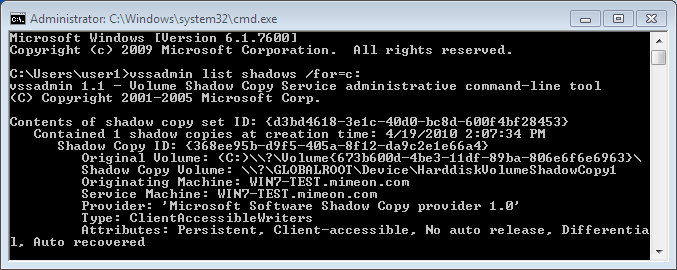
Vssadmin is a command line tool that can be used to display current VSS backups. To do so, use the syntax;
vssadmin list shadows /for=c: (where c: is the volume your working with). 
Here is an example of the output;


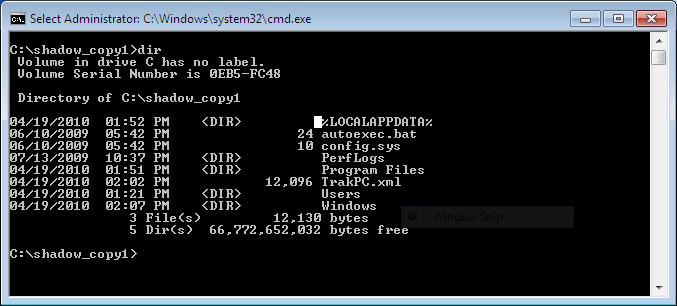
Make sure to note the Shadow Copy Volume you want to analyze and use it with Mklink to create a symbolic link to the backup. For example;
mklink /d C:\shadow_copy1 \\?\GLOBALROOT\Device\HarddiskVolumeShadowCopy1\ (note: the trailing back slash as it is needed). 
 Once created you can browse the symbolic link as you would any folder and restore files of interest by copying them out.


Happy Hunting.

References:
MSDN Blog: A Simple Way to Access Shadow Copies in Vista

Updated June 10, 2011

I came across a great post from @4n6woman on using Log Parser to parse mounted VSC's and preserve the MD5 HAshes and Metadata for easy querying. Thought I would share.

Monday, May 3, 2010

More Experiments with Master File Table Timestamps

I had an anonymous comment on my Tampering with Master File Table Records post referencing the Timestomp utility available in Metasploit. Timestomp is an anti-forensics utility used to change the date/time metadata stored in the $Standard_Information Attribute of the Master File Table. I experimented with the utility prior to the previous post but had some issues getting it to run properly on Windows 7. Moreover, Timestomp does not edit the $File_Name Attribute (MACE) values. The commenter does point out and interesting workaround noted on the Timestomp wiki however.

Moving a file post manipulation with Timestomp copies all four of the $Standard_Information Attribute time values to the $File_Name Attribute Attribute values. Once moved, you must change the SI attribute values again. Staying with using the existing tools available on Windows 7, I tested using the Move-Item Cmdlet.
CD C:\Windows\System32
New-Item malicious.dll -type file
(get-item malicious.dll).creationtime=$(Get-Date "02/11/10 07:30")
(get-item malicious.dll).lastwritetime=$(Get-Date "02/11/10 07:30")
(get-item malicious.dll).lastaccesstime=$(Get-Date "02/11/10 07:30")
set-date -date 02/11/10
set-date -date 07:30:00
rename-item malicious.dll notmalicious.txt
Move-Item notmalicious.txt C:\Users\Public\
CD C:\Users\Public\
(get-item notmalicious.txt).creationtime=$(Get-Date "02/11/10 07:30")
(get-item notmalicious.txt).lastwritetime=$(Get-Date "02/11/10 07:30")
(get-item notmalicious.txt).lastaccesstime=$(Get-Date "02/11/10 07:30")
I verified again by carving the $MFT out and using analyzeMFT to parse the contents. The following is the output of the $MFT record for our malicious file verifying that all eight date values have been edited;


Rob T. Lee also recently posted some research he has been doing on Windows 7 $MFT timestamp entries. His findings to date seem to support the aforementioned behavior. It will be interesting to see what additional behavior he finds. Keep the comments coming!

Thursday, April 15, 2010

An Aside Note on Last Access Time Values

Dave Hull had brought to my attention that Windows Vista and Windows 7 has the Last Access Time attribute disabled by default. I verified that Windows Server 2008 also has this feature disabled. To enable via the registry (note a restart is necessary):
[HKEY_LOCAL_MACHINE\SYSTEM\CurrentControlSet\Control\FileSystem]
"NtfsDisableLastAccessUpdate"=dword:00000001
This did not prevent me from manipulating the $MFT attributes with PowerShell, but I did notice some strangeness when accessing files via explorer.exe. Specifically, the Last Access time does not always get updated even with this setting enabled. After some searching around I found this article on Microsoft TechNet. To quote the relevant sections;
The Last Access Time on disk is not always current because NTFS looks for a one-hour interval before forcing the Last Access Time updates to disk. NTFS also delays writing the Last Access Time to disk when users or programs perform read-only operations on a file or folder, such as listing the folder’s contents or reading (but not changing) a file in the folder. If the Last Access Time is kept current on disk for read operations, all read operations become write operations, which impacts NTFS performance.
NTFS typically updates a file’s attribute on disk if the current Last Access Time in memory differs by more than an hour from the Last Access Time stored on disk, or when all in-memory references to that file are gone, whichever is more recent. For example, if a file’s current Last Access Time is 1:00 P.M., and you read the file at 1:30 P.M., NTFS does not update the Last Access Time. If you read the file again at 2:00 P.M., NTFS updates the Last Access Time in the file’s attribute to reflect 2:00 P.M. because the file’s attribute shows 1:00 P.M. and the in-memory Last Access Time shows 2:00 P.M.
I was able to confirm this behavior by altering the system time prior to accessing a file. I thought it was noteworthy since the Last Access Time may not be completely accurate. While the forensic impact of this could be debated, it should at least be considered during an investigation.

Wednesday, April 7, 2010

Tampering with Master File Table Records

I have been spending some time reading File System Forensic Analysis by Brian Carrier which is considered by many to be the primary resource on the subject of file system forensics. Consequently, I began thinking of ways to tamper with the metadata stored within the Master File Table (MFT) of NTFS formatted drives. In NTFS everything is a file and the MFT stores information on these files. Analyzing the MFT is one way of establishing a forensic timeline of all file and folder changes on the system being investigated.

The MFT file contains a unique record for each file or folder which includes several attributes such as the $Standard_Information Attribute and $File_Name Attribute. Each attribute contains metadata on every file and folder ever created, modified, accessed, or removed within NTFS.

The $Standard_Information Attribute contains metadata which includes the Date/Time values that are commonly referenced by the operating system. These are the values one would see when viewing the properties of a file within explorer.exe on a Windows system. The values are sometimes referred to as M.A.C.E. and include;
Modified Time: Time the folder or file was last modified
Accessed Time: Time the folder or file was last accessed
Creation Time: Time the folder or file was created
Entry Modified Time: Time the MFT entry of a folder or file was last modified (note: cannot be viewed from Windows explorer)

The $File_Name Attribute contains the name of the file. In Windows there will usually be entries in both the 8.3 DOS and Win32 naming format. The $File_Name Attribute also contains similar date/time (MACE) values as those found in the Standard Information Attribute. These values often reflect the creation time of the file or folder and do not change frequently. There are exceptions to this which I discuss later in this post.

Since the attribute values stored within the MFT are commonly used for generating a timeline during the analysis of Windows NTFS file systems, I started playing around with manipulating the metadata within it. If one wanted to cover one's tracks by doing so, it would be useful to use tools already available on the operating system. Such tools would ideally not track or log the commands run on the system. Irony is, the Windows PowerShell fits this description and has these capabilities. Dave Hull has noted this on his blog here.

By leveraging the Get-Item cmdlet in PowerShell, one can change some of the metadata within the $Standard_Information attribute and consequently the values shown in the properties of the file. For example;
(get-item malicious.dll).creationtime=$(Get-Date "02/11/10 07:30")
(get-item malicious.dll).lastwritetime=$(Get-Date "02/11/10 07:30")
(get-item malicious.dll).lastaccesstime=$(Get-Date "02/11/10 07:30")
 

To verify this change within the MFT, I used FTK Imager Lite to export the $MFT and AnalyzeMFT to parse and export the contents into CSV format. AnalyzeMFT is a free tool based on a commercial tool called MFT Ripper by Mark Menz. Once exported, the CSV file can be opened in your favorite spreadsheet program for easy filtering. The following screen shot shows the MFT record for the malicious.dll after I using the Get-Item cmdlet to change the dates (note the dates are stored in UTC format).


As you can see from the export, the problem with this tactic is the Std Info Entry Date (MFT Entry Modified Time) remains unchanged. Moreover, the FN Info ($File_Name Attribute) Dates also remain unchanged. Interesting enough, renaming the file will change both these values but doing so will change them to the current system time. The only real option I have been able to find is to change the system time prior to renaming. This can be accomplished by using the set-date cmdlet in Power Shell.
set-date -date 02/11/10
set-date -date 07:30:00
rename-item malicious.dll notmalicious.dll
Now we have the following export from the MFT.


Unfortunately, this approach is far from perfect. The MFT Entry Modified Date within the $File_Name Attribute remains unscathed (I have not been able to figure out how to change this). Moreover, by default, a System Informational Event is logged within the Windows Event log of a change to the system time. Note the the date of the event however. There is a similar event logged for the time change.
Log Name:      System
Source:        Microsoft-Windows-Kernel-General
Date:          2/10/2010 12:00:00 AM
Event ID:      1
Task Category: None
Level:         Information
Keywords:      Time
User:          User
Computer:      CompromisedHost
Description:
The system time has changed to ?2010?-?02?-?11T04:00:00.000000000Z from ?2010?-?04?-?07T18:49:38.251360400Z.
Other considerations, include .lnk files being stored within the MFT due to the "Recent Document History" feature being turned on by default within Windows. This feature would create a malicious.dll.lnk file in the C:\Users\Username\AppData\Roaming\Microsoft\Windows\Recent folder on Windows Vista and 7 and consequently create an MFT entry for this file with metadata. This certainly would also be a red flag for the forensic investigator. Thus an attacker may want to turn this feature off prior to performing any tasks on the host. With PowerShell this can be accomplished by using the New-ItemProperty cmdlet to create the appropriate registry values and then by using Stop-Process cmdlet to force the reload of the explorer.exe shell for the current user.
mkdir HKCU:\software\microsoft\windows\currentversion\policies\explorer
New-ItemProperty HKCU:\software\microsoft\windows\currentversion\policies\explorer -name norecentdocshistory -propertytype DWord -value 1
Stop-Process -name explorer -force
The explorer process reloading will also generate an information event log.
Log Name:      Application
Source:        Microsoft-Windows-Winlogon
Date:          2/11/2010 7:34:12 AM
Event ID:      1002
Task Category: None
Level:         Information
Keywords:      Classic
User:          N/A
Computer:      CompromisedHost
Description:
The shell stopped unexpectedly and explorer.exe was restarted.
Stopping the eventlog service prior to actions being taken on the compromised host may be prudent, but I will save the manipulation of other forensic timeline sources for a later post.

Updated May 3, 2010:

Published a follow-up post on successfully changing the Entry Modified Date within the $File_Name Attribute thanks to an anonymous tip. The followup can be found here.